8 Best Browser Accessibility Checkers for U.S. Web Teams (2026)
Find a tool that fits the way your team reviews pages, then test the parts a scan cannot see.

7 min read
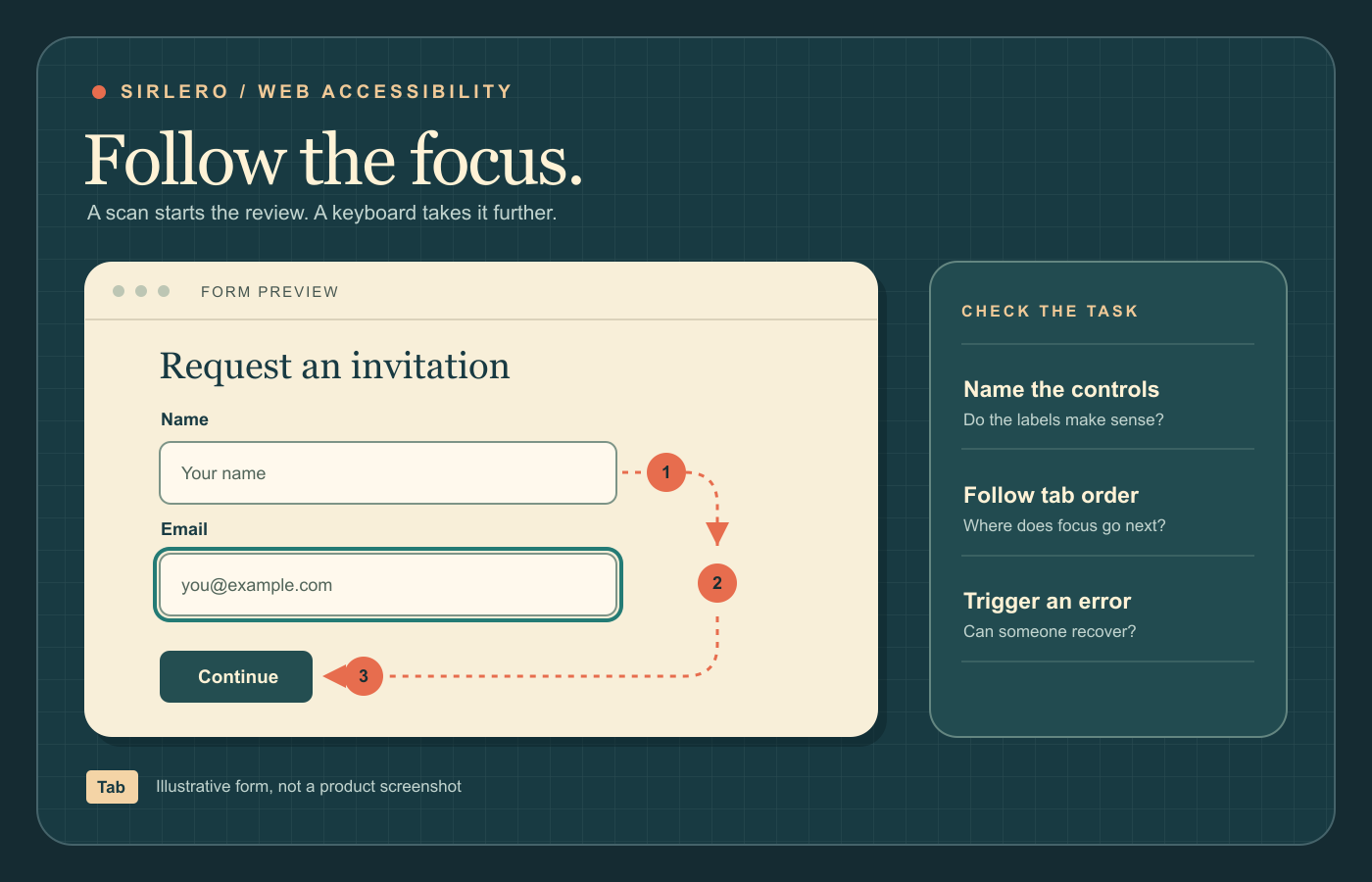
A checkout can pass an automated accessibility scan while the keyboard focus disappears when a payment dialog opens. Conversely, a scan can catch an unlabeled field much faster than a person can inspect every input by hand. A useful browser checker helps you find what it can and gives you a clear place to start the human review.
These eight tools evaluate web pages in a desktop browser. You can use them during a code review, on a staging site or after an editor publishes a new page. The list compares browser tools rather than site monitoring subscriptions, and each has a free way to start.
How we chose
We compared tools available to U.S. teams based on supported desktop browsers, what they show on a rendered page, how they help someone reproduce a finding and where they leave work for the reviewer. This is a desk-researched editorial comparison, without hands-on service tests or a measured accuracy ranking. Sources checked November 18, 2026. Several tools can flag the same underlying issue; a second tally is no substitute for a different kind of check.
Quick comparison
Accessibility Insights for Web: guided keyboard checks and assessment. WAVE: see findings in the page. Axe DevTools: code-level triage and optional paid guidance. Lighthouse: a quick pass from built-in DevTools.
IBM Equal Access Accessibility Checker: review findings by requirement. ARC Toolkit: isolate individual types of issues. Siteimprove Accessibility Checker: give editors a concrete fix to request. ANDI: investigate what interactive controls are called.
1. Accessibility Insights for Web — Best overall for pairing automation with keyboard review
Microsoft’s extension is our top editorial pick for teams that want a repeatable first pass. FastPass combines an automated scan with an assisted review of tab stops. A reviewer can see the sequence in which controls receive focus and investigate a missing button, a confusing jump or a potential keyboard trap. The separate Assessment workflow gives reviewers instructions for checks that still need a person.
The tool is free and open source, with desktop Chrome and Edge versions. FastPass still requires someone to operate the page, and one pass does not cover every state of a form or menu. Start with the state most users see, then repeat the review with the dialog open or the form showing errors.
2. WAVE browser extension — Best for seeing issues in page context
WebAIM’s extension places markers on the page and connects them to a details panel. It suits editors and designers who want to point to the specific image, heading or control they mean when they file a ticket. Its structure view helps reviewers follow a page’s headings, while the code view can give the developer more context. The extension checks the rendered page locally, including pages that require a login.
The extension is free for Chrome, Firefox and Edge. Its markers can overlap or disturb a crowded layout; the details panel and the option to disable page styles can help. Treat alerts as prompts to investigate. For example, a tool can flag a missing text alternative, but a reviewer needs to judge whether an existing one explains the image’s purpose.
3. Axe DevTools Extension — Best for sending findings back to developers
Deque’s extension lets a developer run an automated page scan from DevTools and inspect the elements behind a finding. It fits a team that wants to recreate an issue on a branch before handing it off. Pro adds guided tests and features for saving and exporting findings, which are useful if developers and reviewers work in different tools.
The full page automated scan is available in the $0 tier. Pro is paid, and Deque’s public plan comparison gives no current USD rate; confirm the price and billing term before budgeting. Chrome and Edge support Pro, while Firefox has a limited version. If sharing a report matters, verify the plan and browser before standardizing the workflow.
4. Lighthouse in Chrome DevTools — Best for a quick check without another extension
Open the built-in Lighthouse panel, select Accessibility and run a report. The accessibility section gives developers findings to investigate alongside other types of page audits they may already run. It is a useful starting point when you have access to Chrome but cannot install extensions.
Lighthouse is open source and the built-in tool costs $0. Its accessibility score is a weighted result from automated checks; manual checks do not feed into that number. Compare individual findings on the same page and under the same conditions, and give keyboard behavior its own test. Some individual checks use axe rules, so a second axe-based report can surface the same issue. A perfect score can coexist with a task that someone cannot complete.
5. IBM Equal Access Accessibility Checker — Best for reviewing findings by requirement
IBM’s checker flags violations separately from findings that need review. Its documented workflow lets reviewers group results by requirement, which helps a QA lead route recurring issues across different templates. IBM also publishes related packages for teams that eventually want some checks to run during development.
The browser checker is free and open source, with Chrome, Firefox and Edge options listed by IBM. A finding marked for review asks someone to inspect the page; it is not an automatic failure. The browser extension and a build pipeline integration are separate ways of running the checker, so installing it does not add any automated release checks.
6. ARC Toolkit — Best for isolating a particular type of issue
TPGi’s DevTools panel can toggle individual tests and show findings on the page. When a component produces a crowded set of results, a developer can narrow the view and inspect one type of issue at a time. The panel also lets reviewers select a finding and go to the corresponding element.
The extension is free, with Chrome and Firefox downloads. Access to local files may require a browser permission. This is a page inspection tool; if you need a recurring audit across many URLs, plan that workflow separately. Capture the page state and the steps to reach it so someone else can reproduce what the panel found.
7. Siteimprove Accessibility Checker — Best for giving editors concrete fix examples
Siteimprove shows where an issue occurs and provides explanations and examples of possible fixes. It works inside the browser on HTML content, including pages in staging or behind a login. That makes it an option for an editor who needs to decide whether a problem belongs in page copy or in a shared template.
The Chrome extension is free. It does not evaluate PDF content, and checking an HTML page that links to a PDF tells you nothing about how that document reads. Use a separate review process for downloads and rescan the changed page after a fix.
8. ANDI — Best for investigating confusing control names
The Social Security Administration’s Accessible Name & Description Inspector is a free bookmarklet. Its modules highlight elements and expose details such as accessible names, which helps when a visually obvious button has a vague or missing label. The agency provides desktop setup instructions including Safari, Firefox, Chrome and Edge.
A site’s content security policy can block the hosted script. Confirm that you can run it in your approved test environment. ANDI can explain where a name comes from; use an actual screen reader to check how the controls and surrounding context sound during the task.
How to choose a checker
Take one task that matters, such as submitting a form. Scan the initial page, the validation error state and the success state. Then do the task with only a keyboard. Check where focus goes, whether you can see it and how you can recover from an error. Have a reviewer also try the flow with a screen reader.
File issues with the exact page state, reproduction steps and expected behavior. If the same unlabeled icon occurs on ten pages, fix the shared component and verify it in more than one place. Use a checker your team will run on each release, then reserve time for the questions that require someone to use the site.